evidock
Open the app
Getting started

How Evidock works

Everything a new team needs: set up the company, install the app on phones, do the first inspection and find every report later on a computer.

Setup · about 10 minInstall · 2 min per phoneFirst inspection · about 5 min
  1. 1Set up the companyOnce, by the manager
  2. 2Install on every phoneEach warehouse worker
  3. 3Inspect at the dockReceiving and dispatch
  4. 4Review in the officeWorkspace on a computer
Step 1 · for the manager

Set up your company

Done once by the person responsible. No passwords and no installation on the computer.

  1. Sign in with your work email

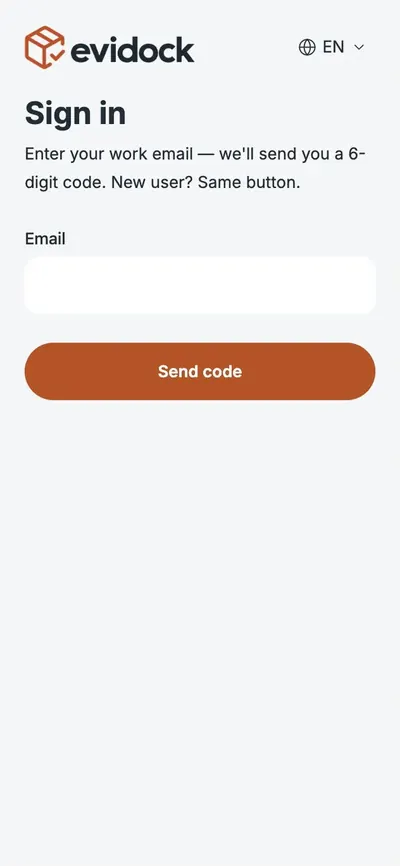
    Open app.evidock.eu on your phone and enter your work email. We send you a 6-digit code — type it in. New users press the same button.

  2. Create your company

    Enter the company name, the country and the name of your first warehouse, then press «Create company». You become the company admin.

  3. Invite your team

    In the app open Settings → Team → «Invite by email». Choose the role — Employee or Admin — and the warehouse. Each person receives an email and signs in with that same address.

  4. Add company details

    On a computer open my.evidock.eu and sign in with the same email and a code. Under «Company» add the registry code, legal address, VAT number, phone and email. Under «Warehouses» add addresses and docks.

The email is the login and cannot be changed later. If someone needs another address, invite the new one and deactivate the old one.

Sign in
Step 2 · for every worker

Install the app on the phone

Evidock opens in the phone’s browser — no app store needed. Added to the home screen it opens full screen with one tap and works offline.

iPhone in Safari

  1. Open app.evidock.eu in Safari.
  2. Tap the Share button — the square with an arrow — at the bottom of the screen.
  3. Scroll down and tap «Add to Home Screen».
  4. Tap «Add». The Evidock icon appears on the home screen.

Use Safari: on iPhone, other browsers may not offer «Add to Home Screen».
Android in Chrome

  1. Open app.evidock.eu in Chrome.
  2. Tap «Install» in the banner at the bottom, or open the menu ⋮ in the top corner.
  3. Choose «Install app» or «Add to Home screen».
  4. Confirm. The Evidock icon appears with your other apps.

Allow the camera

At the first scan or photo the phone asks for camera access — tap «Allow». If you denied it by mistake, turn it on in the phone settings for the browser. Location is optional: it adds GPS to photos.

Then open Evidock from the icon and sign in with your work email and the 6-digit code.

Step 3 · at the dock

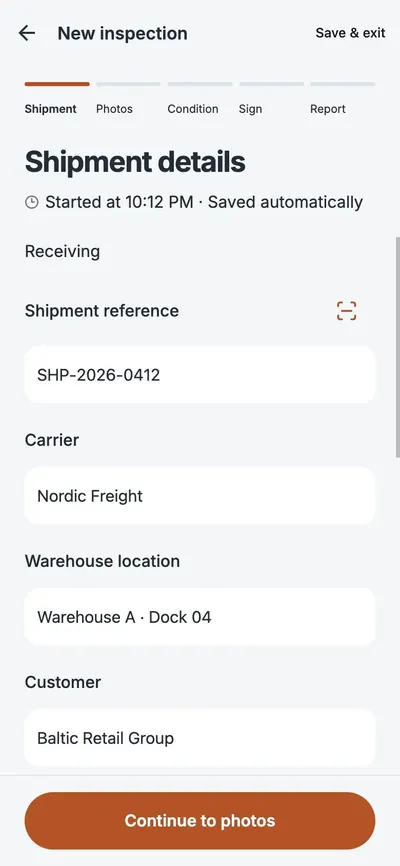
One inspection in five steps

The same flow for receiving and dispatch. On the home screen choose «Receiving» or «Dispatch» and press «New inspection».

  1. 1

    Shipment

    Scan the barcode or QR code of the shipment, or type the reference. Add carrier, dock, customer, seal number and quantities: pallets and packages by documents and actually counted. Everything saves automatically.

  2. 2

    Photos

    Choose a category — Cargo, Damage, Documents or Vehicle / Seal — and take photos or add them from the gallery. Original photos are kept with the time they were taken.

  3. 3

    Condition

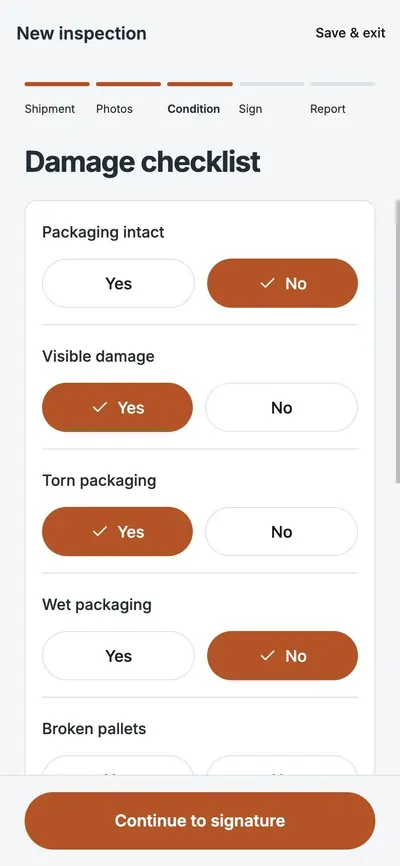
    Answer the checklist with Yes or No: packaging intact, visible damage, torn or wet packaging, broken pallets, missing items. Add the number of damaged packages, whether a reservation was written on the CMR, and notes.

  4. 4

    Signatures

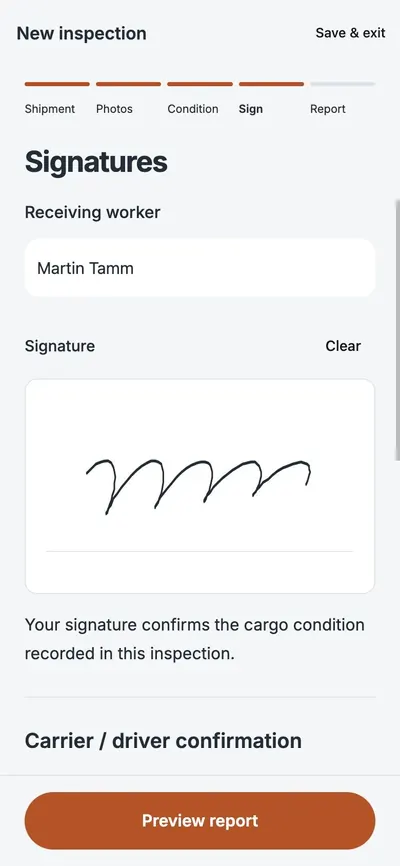
    Sign with your finger. Then the driver — or the receiving party at dispatch — enters the name and vehicle number and signs. If they refuse or are not available, choose that status: it is recorded in the report.

  5. 5

    Report

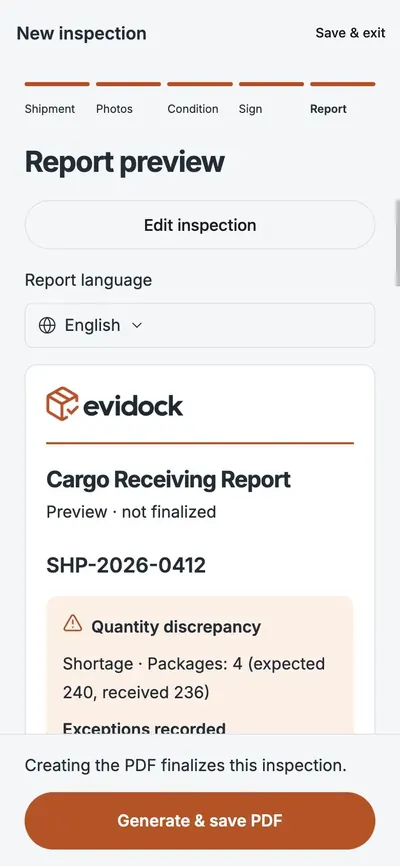
    Check the preview, choose the report language and press «Generate & save PDF». The inspection is now signed and can no longer be changed. Share the PDF by email or messenger right from the phone.

No internet at the dock? Keep working. Inspections and photos are saved on the phone and upload automatically when the connection is back.

Step 4 · in the office

The workspace on your computer

my.evidock.eu shows all inspections of your company in one place. Sign in with your work email and a 6-digit code.

  • Find any inspection

    Search by reference, seal, vehicle, carrier or customer. Filter by period, receiving or dispatch and warehouse — or show only inspections with issues.

  • Open the evidence

    Each inspection shows the result, quantities and differences, the checklist, all photos with time and location, both signatures and the signed PDF.

  • Download and export

    Download the PDF or all original photos as a ZIP. Admins can export selected or all shown inspections: a ZIP with PDFs, original photos and a CSV table for Excel.

  • Manage team and warehouses

    Admins invite people, change roles and warehouse access, deactivate anyone who leaves — their inspections stay in the archive — add warehouses and docks and edit company details.

Who can do what

EmployeeAdmin
Do and sign inspections in the appYesYes
View inspections, download PDFs and photosYesYes
Export ZIP with PDFs, photos and CSV—Yes
Invite people, change roles, deactivate—Yes
Warehouses and company details—Yes
Good to know

If something goes wrong

The code did not arrive

Check the Spam or Junk folder. The code is valid for 1 hour. You can request a new one after 30 seconds — always use the code from the latest email.

There is a mistake in a signed inspection

A signed inspection cannot be changed — that is what makes it trustworthy. Open it and add an addendum: a correction with the reason. The original stays as it was.

The driver refused to sign

In the signatures step choose «Refused to sign». The report records it together with your signature and the photos.

An employee left the company

An admin deactivates them in the workspace: Team → Edit → Deactivate. They lose access at once; their inspections stay in the archive.

New or lost phone

Install Evidock on the new phone and sign in with the same email. Signed inspections are kept in the cloud. If a phone is lost, an admin can deactivate that access.

Which languages are supported?

The app, the workspace and the reports work in English, Estonian, Finnish, Lithuanian, Latvian and Russian. The report language can be chosen for each PDF — for example, for a foreign carrier.

Need help?

Write to us and we will help your team get started. During the pilot we help every new company personally.

Pilot: 2 months free in exchange for honest feedback.